QoL UI - HUD
By cold-muddy
Community Rating
The Quality of Life UI series continues with QoL UI - HUD. This Creation allows players to colorize and apply custom behaviors to HUD widgets. Your changes will persist throughout your save so no need to set/reset everything on each game load. This Creation is the first of its kind for Starfield and is exclusive to PlayStation and Xbox.
Also included is a brand new HUD widget: HUDCredits - which can be toggled on/off.
Features: • Achievement Friendly • Large Font Mod Support • Colorize the HUD’s Widgets via RGB values (Exclusive) • UPDATED - Customizable Watch Behavior (Exclusive) • Customizable Health Bar Behavior (Exclusive) • HUDCredits Widget (Exclusive) • Toggle Ammo Type Text Display • Toggle Stealth Meter • Toggle Item Stealing Behavior • Change the Subtitles Font (Exclusive) • Dynamic Weapon Icons Loader • Toggle Enemy Health Bar Display • Quick Loot Item Card • Toggle Directional Hit Indicator • Built-in Watch Fix for Watchtower • Support for the Free Lanes game update • NEW - Support for PlayStation • NEW - Toggle Reticle Hit Indicator • NEW - Weapon Icon Behavior (Exclusive) • NEW - Grenade Icon Behavior (Exclusive) • NEW - Ammo Counter Behavior (Exclusive)
The features marked Exclusive above are only available in this Creation.
HUD Colorization: There are three color channel options: Red, Green, Blue. Each channel may be set independently and fine-tuned to your liking. However, there is no “color picker” within the game or the options menu. You do have a few options however: google an RGB color picker and then set the in-game value accordingly, experiment in-game, or use your favorite graphic editing software to determine the best values for you. Each channel has a maximum value of 255 (white) and a minimum of 0 (black). If you drop any of the channels to zero, you run the risk of certain icons appearing without color (ie setting Red to 0 will yield unpredictable results for the Stealth Meter’s Danger mode).
Watch Behavior: The Watch on the HUD can now be set to appear under specific circumstances. • Off - the Watch is never displayed • Normal - vanilla game behavior • ADS (Aim Down Sight) - the Watch appears only when you aim down sight. • Scanner - the Watch appears only when the Scanner is toggled on. • Weapon Drawn - the Watch only appears when your primary weapon is drawn. • Combat - the Watch only appears while in Combat. • ADS and Scanner - the Watch appears while aiming down sights OR while the Scanner is toggled on. • Weapon Drawn and Scanner - the Watch appears when weapon is drawn OR while the Scanner is toggled on. • Combat and Scanner - the Watch appears while in combat OR while the Scanner is toggled on.
Health Bar Behavior: Want more immersion? Offended by the Health Bar always on display, even though you don’t want to see it? Or maybe you do want to see it but only after your health drops below a specific threshold? Well, this option is for you! The Health Bar can now be completely disabled or set to appear while your Heath is below a defined threshold. Best of all, you set the threshold. • Off - this option completely disables the Health Bar’s visibility. • Normal - Vanilla Setting • Health Below X% - the Health Bar only appears while your health is below the specified threshold. The threshold is set in increments of 5 (ie 95, 90, 85, 80, etc).
HUDCredits: Inspired by Bwones’ HUDCaps mod for FO4, this Starfield-themed widget will animate onscreen showing the number of Credits in your pockets and how many you just acquired. Watch as your recently acquired Credits are added to your total. • Off - Default Setting; widget is disabled. • On - Widget is enabled and fires every time Credits are acquired.
Ammo Text Display: Some people like adding details to their HUD. And with this setting, you too can do just that. The Long Names setting will work out-of-the box for ALL ammo types, including custom types added by other Creations. The Short Name setting will work with MOST custom ammo types. The absolute worst-case scenario is the Short Name is identical to the Long Name. • Off - Default Setting; widget is not used. • Short Names - Display the equipped weapon’s ammo in the “short name” format. • Long Names - Display the equipped weapon’s ammo in the “long name” format.
Stealth Meter Display: Don’t want to ever see or use the Stealth Bar? Then disable it! • Off - the widget is not used. • On - vanilla setting (default)
Item Stealing: This setting adds a layer of protection for the player during their adventures. We’ve all accidentally stolen items while looting containers, and/or attempting to sit a table only to click on an item and turn a nearby NPC hostile. With this setting set to “Sneak”, the “Steal” button will be disabled while standing. Stealing an item will require the player to be crouched. • Normal - vanilla setting (default). • Sneak - requires the player to be crouched to Steal items.
Subtitles Font: This setting allows users to change the subtitles display font. The following fonts are supported: • Arial • Consolas • Handwritten Institute • NB Architekt • NB Architekt Light • NB Grostek R Semibold (Default) • NB Grostek R Bold
Dynamic Weapon Icons Loader: Combining this Creation with Weapon Creations that choose to support this feature will allow Weapon Creations to be Achievement Friendly, while also having unique and custom icons displayed on the HUD and within Favorites Menu - NO PATCHES NECESSARY. Creation Content Authors - of both Free and Paid Creations - can leverage this feature simply by shipping their Creations with an appropriate UI file. That’s it! No scripting, no coding of any kind - just package up the SWF, and this Creation’s Custom Icon Loader will, ahem, “just work.” The Dynamic Weapon Icon Loader included here works alongside Bethesda's implementation from the latest update.
Enemy Health Bar: This setting allows users to toggle the Display of Enemy Health Bars. • Off - Widget is disabled. • On - Default Setting.
Quick Loot Item Card: The Item Card can now be displayed as you select items within a Container, NPC, etc. • Off - Default Setting. • On - Widget is enabled.
Directional Hit Indicator: The Red Directional Hit Indicator Arc can now be toggled On/Off. • Off - Widget is disabled • On - Default Setting
Reticle Hit Indicator: The Red Reticle/Crosshair Hit Indicator can now be toggled On/Off. • Off - Widget is disabled • On - Default Setting
Weapon Icon Behavior: The Weapon Icon on the HUD can now be set to appear under specific circumstances. • Off - Widget is disabled • Normal - Default Setting • ADS (Aim Down Sight) - the Weapon Icon appears only when you aim down sight. • Combat Only - the Weapon Icon appears only while engaged in combat. • Weapon Drawn - the Weapon Icon appears only when your weapon is drawn.
Grenade Icon Behavior: The Grenade Icon on the HUD can now be set to appear under specific circumstances. • Off - Widget is disabled • Normal - Default Setting • ADS (Aim Down Sight) - the Grenade Icon appears only when you aim down sight. • Combat Only - the Grenade Icon appears only while engaged in combat. • Weapon Drawn - the Grenade Icon appears only when your weapon is drawn.
Ammo Counter Behavior: The Ammo Counter on the HUD can now be set to appear under specific circumstances. • Off - Widget is disabled • Normal - Default Setting • ADS (Aim Down Sight) - the Ammo Counter appears only when you aim down sight. • Combat Only - the Ammo Counter appears only while engaged in combat. • Weapon Drawn - the Ammo Counter appears only when your weapon is drawn.
Game Update: This Creation's UI code has been implemented into the Free Lanes UI file included in Bethesda's latest game update.
Watchtower Support: Included in this release is a fix for a HUDMenu UI glitch introduced in Watchtower. When opening the Handscanner, the Watch does not change to display the environments' properties. This Creation fixes that glitch.
Compatibility:
This Creation edits several UI files. However this Creation IS COMPATIBLE with Ammo HUD’s Weapon Icons. Ammo HUD is NOT required for this Creation to function however. Out of the all the UI files this Creation edits, weaponicons is NOT one of them.
This Creation is NOT compatible with any other Creation that modifies the playerhudcomponents file.
Troubleshooting:
If a setting reverts back to default, simply change the setting, back-out of the menu to trigger an autosave, and then change the setting back to the desired position, and back-out once more.
If the RGB numbers are not holding their exact numbers, decrement them by desired setting minus 1 and then increment them by 1. The number should now stay at the appropriate value.
Cycling Ranged Weapons in quick succession can cause the Ammo Text Display to lose sync. Should this occur, simply change to a different weapon and then change back to the desired weapon. To avoid this, slow down on selecting new weapons from the Favorites Menu.
Currently, there is no in-game "color picker" to choose a specific color. However, any online color picker can help you pinpoint the exact RGB values for your desired color.
Release notes
Xbox
-
1.12Added PlayStation Support.
Fixed several bugs including ones related to saving/loading settings.
Added a few new toggles for managing the Weapon, Ammo Counter, and Grenade Widgets. -
1.11Fixed several bugs related to saving/loading settings
Fixed an issue which could cause the Ammo Text to not display
Updated to the latest UI file Bethesda released with their latest game patch
Includes a fix for Watchtower and the Watch on the HUD not changing states when the Handscanner is opened. -
1.10More features have been added, including:
Dynamic Weapon Icons Loader
Toggle Enemy Health Bar Display
Quick Loot Item Card
Toggle Directional Hit Indicator
-
1.00Initial Release
Playstation
-
1.12Added PlayStation Support.
Fixed several bugs including ones related to saving/loading settings.
Added a few new toggles for managing the Weapon, Ammo Counter, and Grenade Widgets.
Additional Screenshots Available
This mod has 11 additional screenshots available on the official Bethesda.net page.
View All Screenshots on Bethesda.netYouTube Videos
Community Rating & Feedback
No reviews with comments yet.
Be the first to leave a review!
Related Starfield Mods
By xtcrefugee • 2 years ago
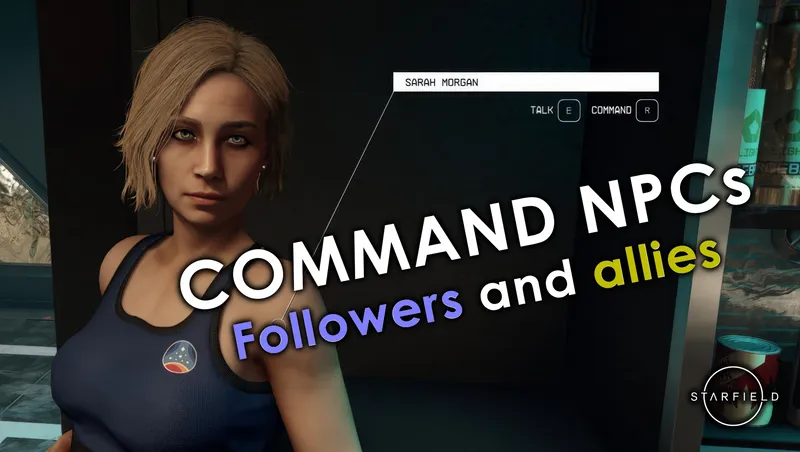
Allows the player to command followers and other allies to do things, as was possible in previous Bethesda games. Also allows you to access the inventories of unnamed crew.
By cdante • 1 year ago
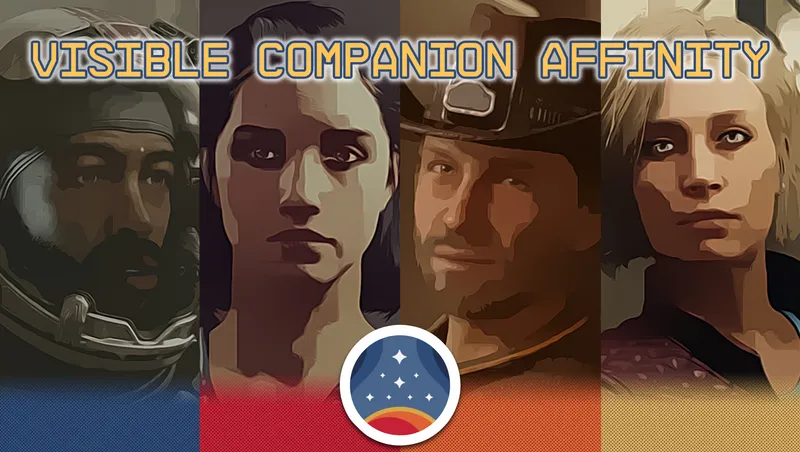
A creation that allows you to monitor the metrics that describe your relationship with your four companions in Starfield.
By senter.pat • 2 years ago
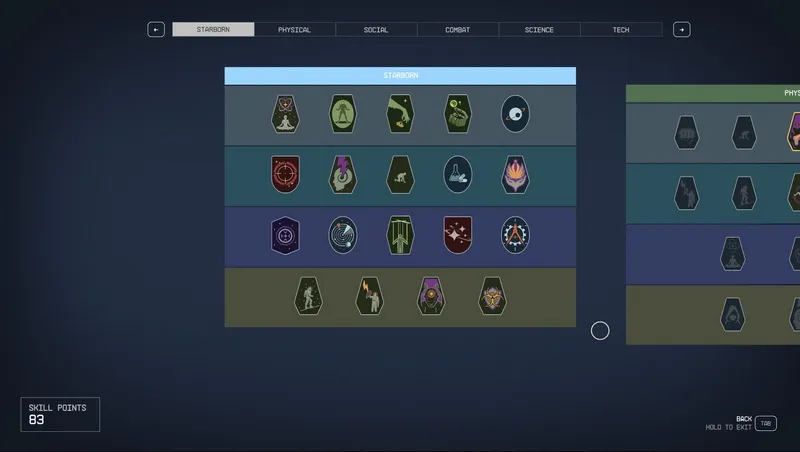
Adds 19 new perks to a Starborn tree using FSNovask's resource allowing for a new perk tree. The resource is included.
By ExoWarlock313 • 2 years ago
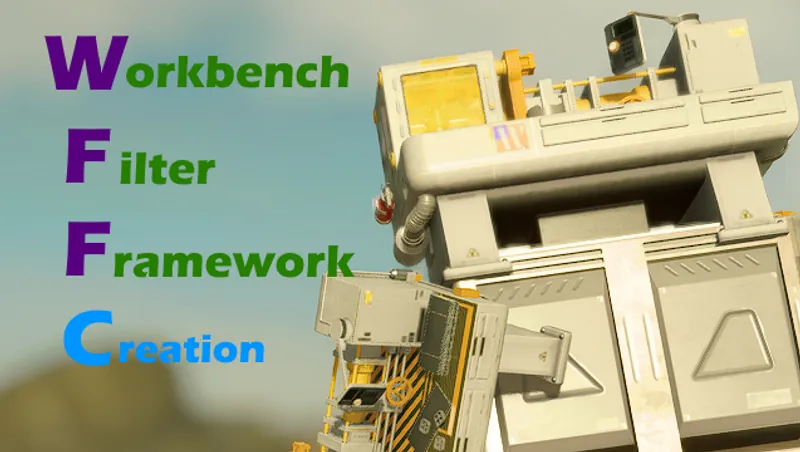
Filter recipes by category with the push of a button! 简体中文! Deutsch! Français! 日本語!
Quick Actions
Your Rating
Sign in to rate and review this mod—your vote helps the community.
Community Rating
Categories
Mod Information
- Published
- Mar 25, 2025
- Last Updated
- May 19, 2026
- Platforms
- Playstation, Xbox
Search Mods
Related Starfield Mods